Servers Are Up Engineering··12 min read·Technical Review Verified
Multi-Server Dashboard: Manage Every Server in One Browser Tab
multi server dashboard server management dashboard
A multi-server dashboard puts every machine you run behind one screen and one login, so you stop hopping between SSH windows, remote desktop clients and provider consoles. The useful version does more than show charts. It lets you open a terminal or desktop on any server, side by side, and act on what you see. That is how we built Servers Are Up: Linux and Windows servers, containers and game servers, all reachable from one browser tab with nothing to download.
The phrase covers two different things, and search results mix them.
The first is a monitoring dashboard. It collects numbers such as CPU, memory, disk and service status from every host and shows them together. Metabase describes the fleet-focused version as tracking CPU and memory by server group, uptime, disk usage with fill forecasts and top resource consumers, meant for shared, slower reviews while a separate alerting system handles real-time problems.
The second is a management dashboard. It is the place where you do the work: open a shell, edit a file, restart a service, check logs, reboot a VM. The Linux web console that Red Hat ships is a good picture of this. Its documentation lists managing user accounts and services, configuring network interfaces and firewall, reviewing logs, managing virtual machines and updating software, and notes that it uses the same system APIs as the terminal, so a change made in one shows up in the other.
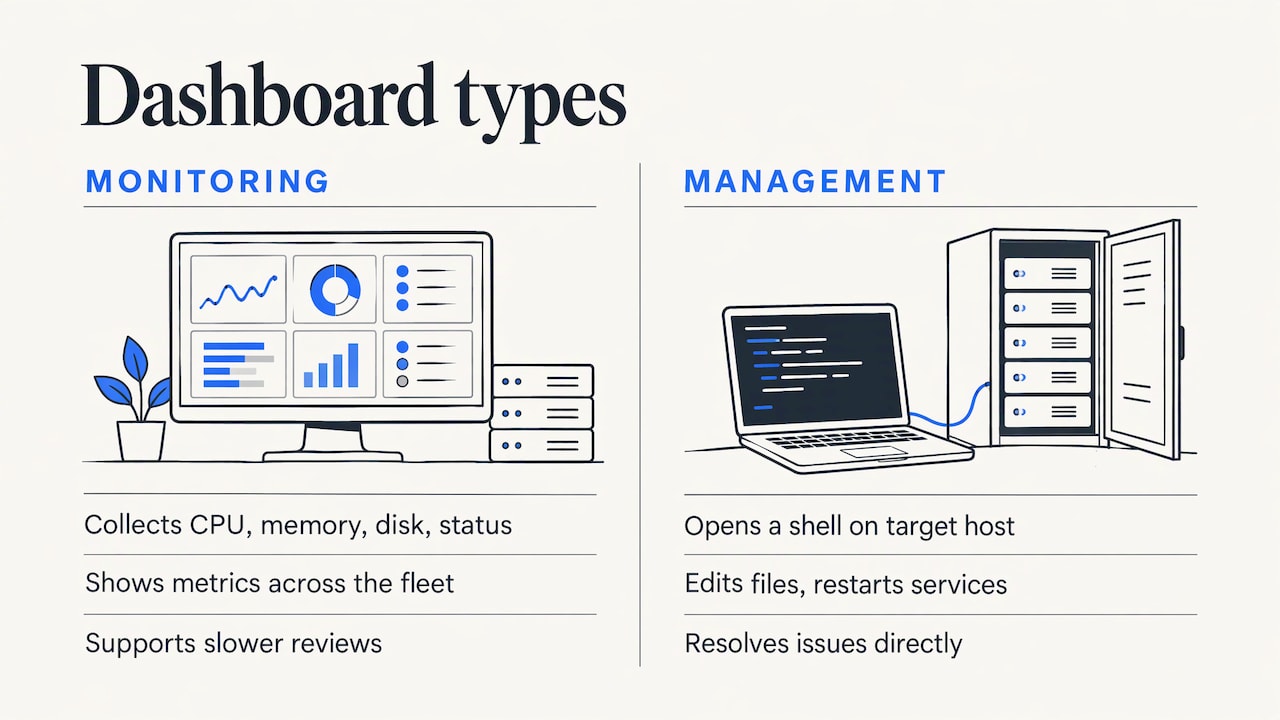
If you run a handful of servers rather than a data center, the management side is the one you feel every day. Charts help you notice a problem. A terminal on the right machine, one click away, is what resolves it.
The right dashboard depends on what you run.
Developers usually want fast movement between machines: a staging box, a production VM, a build server. You want named servers instead of remembered IP addresses, a terminal and file access in the same place, and the ability to keep two machines visible at once. A long build on one server should never block you from checking another.
Businesses need flexible capacity. Workloads grow and shrink, and a team needs one place to see what is running, who can reach it and what it costs. Per-unit sizing matters more than a fixed server catalog.
AI hobbyists need dedicated environments they can wire to their own agents. The dashboard should have an API behind it, so what you click today can be scripted tomorrow.
Gamers want to start, stop and configure a game server without learning Linux administration. A console, file access and a simple restart matter more than any chart.
Across all four, the shared test is simple: can you get from "something looks off" to "I am inside that machine fixing it" in seconds?
A browser removes the client software step. Nothing to install on your laptop, nothing to keep updated, and the same view from any computer. Here is what a good one covers.
Linux servers are reached through a shell, Windows servers through a desktop. In a browser dashboard both open in tabs or panes, so you can tail a log on one Linux box while watching a Windows desktop on another. Our guide to browser-based SSH terminal setup for multi-server access walks through the architecture.
Users, services, firewall rules, logs, updates and storage are the daily list. Cockpit, the open-source web console for Linux, shows how far a browser can go: its host view offers Overview, Logs, Storage, Networking and a Terminal for each server, and a designated management host can bring other servers into one unified view.
Cockpit's dashboard shows CPU, memory, network and disk I/O in real time. To add more servers to the same screen, each one needs Cockpit installed and your SSH key set up. That setup is the hidden cost of the do-it-yourself route: every new machine means another install and another key to manage.
At larger scale, control planes connect several clusters. Proxmox Datacenter Manager reached general availability in December 2025 and connects multiple Proxmox VE clusters in one control plane with CPU, RAM and storage metrics, search and central updates. That is the right shape for people running their own hardware at data center scale. Most developers, hobbyists and small teams want the same single-screen idea without owning the hypervisors underneath.
A healthy setup separates two questions. "Is this server healthy?" is answered by monitoring. "What do I do about it?" is answered by access.
Teams that build their own stack often assemble several pieces: a metrics collector on every host, a charting layer, an alert router and then a separate way in to fix things. It works, but you maintain all of it. With ten or more servers, the dashboards also need grouping, such as an "all production servers OK" summary, and one consolidated alert instead of five identical ones, or the alerts become noise.
Outside checks matter too. Host metrics tell you the machine thinks it is fine; a check from another network tells you whether users can reach it. When you probe from outside, sampling several times rather than once keeps a single failed probe from raising a false alarm.
For a deeper look at tool categories, see our rundown of essential server monitoring tools.
One screen that reaches every machine is convenient, and it deserves care. Oracle's Cockpit documentation explains why: in Oracle Linux 10, connecting secondary hosts is deprecated and disabled by default, because connecting to several hosts at once means a single malicious host could run programs on all of them. Oracle Linux 8 and 9 still allow it, and the documented safe alternative is one host per browser session.
Turn that into habits:
Our guide to secure remote access from a browser covers these controls in more detail, and the architecture and security evaluation of browser SSH and HTML5 remote desktop explains how the two session types work.
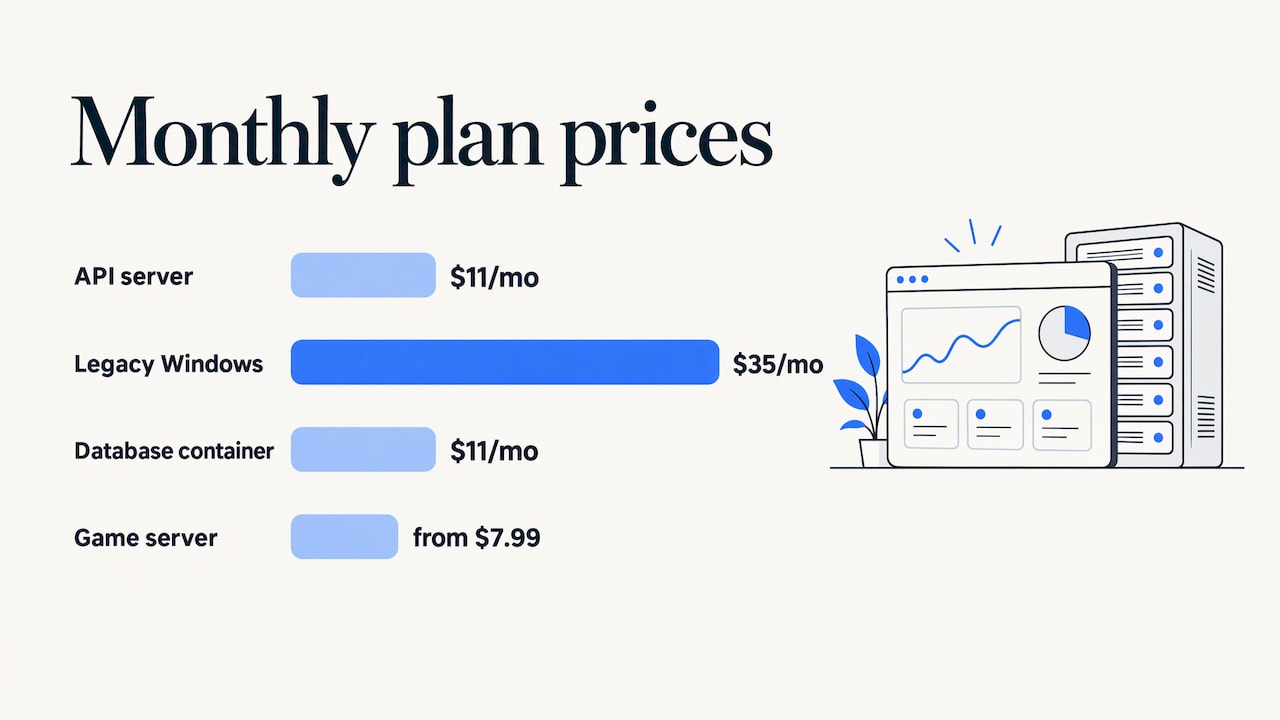
Take a developer with four machines: a Linux VM for an API, a Windows VM for a legacy tool, a Docker container for a database and a game server for a weekend community. In a traditional setup that means an SSH client, a remote desktop client, a container CLI and a game panel, each with its own login.
In a single browser console, the same person opens the Linux terminal and the Windows desktop next to each other, checks the container, and restarts the game server, all from one tab. On our platform that fleet could look like this:
| Workload | Plan | Price |
|---|---|---|
| API server | Linux Starter | $11 per month |
| Legacy Windows tool | Windows Starter | $35 per month |
| Database container | Docker Starter | $11 per month |
| Community game server | Game servers | from $7.99 per month |
Add the machines you already run elsewhere, and they appear in the same console. Connecting your own machines costs $3 per month per machine, and a public IPv4 address is $5 per month. Prices are as published on our site and can change, so check the pricing page for the current list.
A dashboard is also where you notice that a workload has outgrown its machine. Disk fill, memory pressure and a CPU that sits near its ceiling are the signals that matter in a weekly review, and the answer is either a bigger size or a different layout.
That is why per-unit sizing is worth looking for. Instead of buying a fixed server and living with it, you pick the size that fits the workload and change it as the workload changes. Linux plans step from Starter at $11 per month to Standard at $38 and Pro at $76, so moving up is a plan decision, not a migration project. For the method behind sizing, our server capacity planning guide shows how to size and forecast.
Teams that want pooled resources rather than single machines can look at virtual datacenter plans: Hobby Lab at $32 per month, Developer Studio at $64 and Team Workspace at $258. Resources are pooled, and you divide them across the servers you create.
Few people have everything in one place. A home lab, an office box or a server at another provider usually has to stay where it is. A useful dashboard brings those machines into the same view rather than asking you to migrate. We cover the design thinking in multi-cloud management dashboard architecture, and our multi-cloud and hybrid hosting page describes how external machines connect.
A screen is only half of a control plane. If everything you can click can also be called from code, you can script routine work and hand it to an AI agent. We provide API access and an MCP endpoint for exactly that, so your own agents can manage servers through the same system you use by hand. Agent plans start with Agent Micro at $9 per month and Agent Standard at $19. Our write-up on AI infrastructure management and MCP tooling goes into how that works.
For gamers, the equivalent is simpler: a console and file access for the game server, plus a way to keep an eye on players and errors. Our Atlas game server monitoring guide shows one approach.
Use this checklist when comparing dashboards:
If your list of servers is growing and your tabs are multiplying, we built Servers Are Up for you. Every server, container and network is reachable from one browser console with no downloads, on infrastructure we own and operate in the United States. Linux starts at $11 per month, Windows at $35, containers from $8 and game servers from $7.99.
See the plans on the Linux server page, or start from the Servers Are Up home page to pick the mix that fits your workloads.
Most dashboards we see stop at the picture. They tell you which machine is red and leave you to find your SSH client, your remote desktop app and the right password.
We think the dashboard should be the workspace. That is why our servers, containers and networks live in one browser console, with terminals and desktops side by side. You see the Linux box and the Windows box together, and you act on either one without leaving the tab.
We also think a console should be programmable. Everything you do by hand should be reachable through an API and an MCP endpoint, so the same control works for you, your scripts and your own AI agents.
And we think small fleets deserve the same quality of tooling as large ones. Flat monthly plans, per-unit sizing and your own external machines for $3 per month each mean a hobbyist and a team can use the same console and pay for what they run.
— Servers Are Up Engineering
A monitoring tool collects metrics such as CPU, memory and disk and raises alerts. A management dashboard adds access: terminals, desktops, files and settings for each server. The best setups combine both, so you go from spotting a problem to fixing it on the same screen.
Yes. On Servers Are Up, Linux servers open as terminals and Windows servers as desktops in the same browser console. You can keep them side by side, with no client software to install.
It is safe when you connect only to hosts you trust and keep sensitive systems separate. Oracle's documentation notes that a single malicious host connected alongside others could run programs on all of them, so one host per session is the cautious choice for production. Use strong logins and individual accounts as well.
As soon as you juggle more than two or three machines, or mix Linux, Windows and containers. At that point the time spent switching clients and logins adds up, and one console pays back quickly.
Explore With AI & Cite This Page
Open a grounded prompt in your AI assistant or copy a clean Markdown, HTML, or APA reference link.
Validate protocols and subnets directly in your browser or continue reading related architecture notes.
SSH Keygen Generator & Cloud-Init YAML Builder
Online TCP Port Checker — Ports 443, 22, 25565
Free WHOIS & RDAP Domain & ASN Lookup Tool
On-Demand Server Hosting: Run Every Server From One Browser Tab
On-demand server hosting explained: how it works, which server types fit dev, AI, business and game workloads, what it costs, and how to launch one in a browser.
Browser-Based SSH Terminal Setup for Multi-Server Access: WebSocket Bastion & Guacamole Architecture
Architectural deep dive into multi-server browser SSH and RDP workspaces: xterm.js WebGL rendering, single-use WebSocket session tickets, loopback guacd multiplexing, and SSH key hygiene.
AI Development Server: What You Need and How to Set One Up
What an AI development server does, how to size CPU, memory, storage and network for your workload, and how to run one from your browser with flat monthly pricing.
Secure Remote Access to Your Servers From a Browser
How to get secure remote access to a private Linux or Windows server from a browser: keys, isolation, logging and a setup you can run in one tab.